

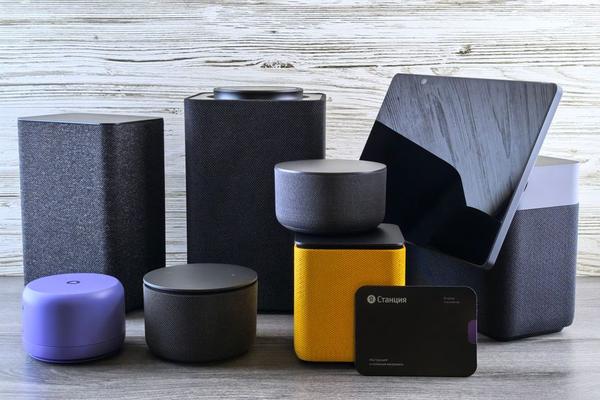
A smart speaker can answer a question or play a song in one room. Add a second or third, though, and the more interesting feature is music that follows you through the house. Multi-room audio with smart speakers lets compatible devices play the same track together, so you can move from the kitchen to the living room without starting playback again.
The setup depends on compatible speakers, a working home network, and the right grouping controls. Knowing how those pieces fit together saves trial and error.
What a speaker group actually does
A speaker group is a collection of audio devices treated as one playback destination. You choose music once; the platform distributes it to the selected rooms and keeps playback synchronized. You can often change the group’s overall volume while still adjusting individual rooms.
That is different from asking separate speakers to play the same song. Two independent streams may begin at different moments, creating an echo where rooms meet. Proper smart speaker groups coordinate timing rather than merely receiving matching commands.
It is also different from a stereo pair. Stereo pairing assigns left and right channels to two compatible speakers in the same room. Multi-room grouping sends synchronized audio across several spaces. Some platforms allow a stereo pair to join a larger group.
Choose compatible devices before arranging rooms
There is no universal group button for every smart speaker. Amazon Echo devices use Alexa’s Multi-Room Music features; supported Google Home and Nest products use Google Home speaker groups; HomePod and other compatible products can play together through AirPlay 2. Sonos speakers can be grouped through the Sonos system.
Check exact models and playback methods before combining brands. Two speakers both having voice control, Wi-Fi, or Bluetooth does not guarantee they can join the same synchronized group. A speaker may support AirPlay 2 but not Google’s grouping system.
For a new whole home audio setup, selecting one ecosystem is generally easier than combining unrelated devices. Consider speaker size, room acoustics, music services, and the voice assistant you use—not just advertised sound quality. A comparison of smart speakers and smart displays can help you choose devices for different rooms.
How to complete a basic multiroom speaker setup
Set up each speaker separately
Plug in each device, add it to its manufacturer’s app, install updates, and give it a recognizable name such as Kitchen or Bedroom. Confirm each speaker plays music by itself before creating a group.
Create the group in the controlling app
For Google-compatible devices, open Google Home and use the Speaker group option to select devices and name the group. In Alexa, look for speaker-combining or Multi-Room Music controls. Sonos provides room grouping in its playback interface. With AirPlay 2, select multiple eligible outputs from the AirPlay controls on your Apple device.
Interfaces vary, so follow the current instructions for your equipment. You might name a reusable group Downstairs or Everywhere. Avoid similar names that a voice assistant could confuse with individual rooms.
Start one stream and test the transition
Play a familiar song on the group, then walk between adjacent rooms. Listen in a doorway, where both speakers are audible. This reveals timing problems better than standing in front of one device. Test both group and individual volume controls.
A practical example: kitchen, hallway, and lounge
Imagine preparing dinner while music plays in the kitchen. You add hallway and lounge speakers to a Downstairs group. The kitchen remains quiet for conversation, the hallway needs low background volume, and the lounge can play louder without breaking the shared track.
Stand between the kitchen and hallway. If you hear a repeating beat, do not immediately buy a faster internet plan. Confirm that one synchronized session is playing and check for a persistent playback delay. This listening test helps distinguish synchronization trouble from ordinary differences in acoustics.
Why speakers fall out of sync
Grouped systems buffer and coordinate audio to make playback line up. Problems arise when devices have extra processing delay, weak network connections, or incompatible playback paths. TVs, receivers, soundbars, and Bluetooth-connected speakers can add latency.
If the offset is consistent, look for a supported audio-delay adjustment. Google, for instance, offers group delay correction for certain devices. Make small changes while music plays and compare speakers from a point between them. A slider cannot fix everything; random dropouts more often suggest connectivity problems.
Sound also travels through open spaces, affecting perceived timing as you walk around. Adjust delay only when the mismatch is audible and repeatable.
Network habits that make playback steadier
Most whole-home systems depend on a reliable local network. Speakers should use networks that let compatible devices discover and communicate with one another. Guest networks, client isolation, or router settings can prevent grouping even when every device has internet access.
Place routers or mesh nodes where coverage reaches the speakers consistently. If one room drops out, check its connection before resetting everything. Keep firmware and apps updated, and avoid changing several settings at once. For broader troubleshooting, learning how Wi-Fi coverage works in a smart home can be useful.
Start with two nearby speakers, then add rooms individually. If trouble begins when you add the garage, you have narrowed the problem to that speaker, its connection, or its audio path.
Voice commands, volume, and everyday control
Voice control is convenient, but apps usually provide playback and volume controls too. The speaker beside your desk may need to be much quieter than the one across the living room.
A spoken volume instruction may affect only the speaker hearing you, not every group member. Check the app’s group and room sliders when behavior seems unpredictable. Not every alarm, announcement, podcast source, or third-party music service supports grouped playback in the same way. Understanding voice assistant routines can also help you organize daily listening.
Frequently asked questions
Can different brands play together in one group?
Sometimes, if their exact models share a supported system such as AirPlay 2. Bluetooth or the same voice assistant alone is insufficient. Check compatibility rather than assuming any two smart speakers synchronize.
Do smart speakers need the same Wi-Fi network?
Many systems require devices to be reachable on the same local network or linked through the supported home setup. Network isolation can stop discovery. Follow the platform’s requirements and verify that speakers appear in its app.
Will Bluetooth speakers work with multi-room audio?
Not automatically. Bluetooth alone is not a synchronized Wi-Fi group. Some systems can include audio routed through a compatible hub or speaker, but this may introduce delay and depends on the equipment.
Can different rooms play different music?
Usually, yes, through separate sessions on ungrouped speakers or room groups, subject to platform and music-service restrictions. One synchronized group normally shares one program. Ungroup a room for a different playlist.
Make the system fit the way you move
The best multi-room audio setup does not necessarily have the most speakers. Start with rooms you move between, name groups clearly, and set volumes for how each space is used. When playback sounds uneven, test synchronization and network stability separately. A small, well-organized group makes music feel continuous without turning listening into a technical project.