

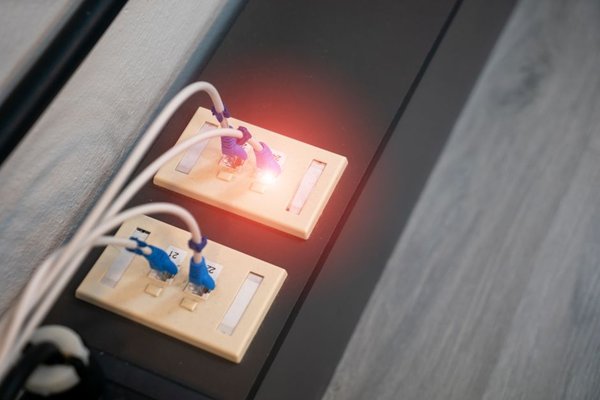
Ethernet gives a computer, smart TV, or games console a stable connection without relying on Wi-Fi signal strength. If your device is near the router, you usually need just one cable. The details that matter are choosing the correct router port and checking that the device uses its new wired connection.
This guide shows how to connect Ethernet to a router, test the result, and fix common problems without changing advanced network settings unnecessarily.
What You Need
Gather a powered-on router with a free LAN port, an Ethernet cable, and a device with an Ethernet port. Cat5e supports gigabit home networking on suitable equipment; Cat6 also works well. A costly premium cable is unnecessary for a short connection across the room.
Both ends of a standard Ethernet cable have a rectangular connector with a small retaining clip. If your laptop has no Ethernet socket, use a compatible USB-A or USB-C Ethernet adapter. Check adapter compatibility before buying, particularly for tablets and slim laptops.
Identify the Router’s LAN Port
Look behind your router for sockets labeled LAN, Ethernet, or numbers such as 1, 2, 3, and 4. These ports connect computers, TVs, consoles, and other devices to your local network.
Do not confuse them with the socket labeled WAN or Internet. That port normally connects the router to a modem or another upstream internet source, not directly to your computer. Some routers have configurable ports, so consult the model’s instructions if labels are unclear.
A combined modem-router may receive its internet feed through coaxial cable or fiber equipment instead. The principle remains the same: use an available LAN port for your wired device.
How to Connect Ethernet to Your Router
Step 1: Plan the Cable Route
Run the cable between the router and your device without stretching it or trapping it beneath furniture. Leave some slack for moving equipment. Avoid a route across a doorway where someone could trip or crush the cable.
Step 2: Plug Into the Router
Insert one cable end into an available LAN port until the connector clicks. A gentle tug should not pull it loose. Never force the connector into a socket of another shape.
Step 3: Connect the Device
Plug the other end into your computer, television, console, or streaming device. If you are using a USB Ethernet adapter, connect the adapter to the device, then attach the cable to its network socket.
Step 4: Use Automatic Network Settings
Most home routers assign network settings automatically through DHCP. Leave the device’s IP address and DNS settings on automatic unless your workplace or network administrator specifies otherwise. You generally do not need to enter the Wi-Fi password.
Step 5: Test the Wired Connection
Open the device’s network settings and look for Ethernet, Wired, or LAN with a connected status. Load a website or open an online service. Some devices show a light near the port, but the light alone does not prove internet access.
For a practical check, temporarily disable Wi-Fi on your computer and try loading a fresh webpage. If it works, traffic is reaching the network through Ethernet. You can enable Wi-Fi again afterward.
Setting Up Ethernet on Different Devices
Windows PCs
Open Settings, then Network & internet, and select Ethernet. Check the reported connection status. If it shows Connected but websites will not load, confirm the router’s internet service is working before adjusting IP settings.
Macs
Open System Settings, select Network, and inspect Ethernet or your connected USB adapter. A recognized connection should show network details. Macs without a built-in socket need a compatible adapter or dock.
Smart TVs
Attach the cable to the television’s LAN port and open its network settings. Choose Wired or Ethernet if prompted. Many TVs switch automatically, although menus differ by manufacturer. Some compact streaming devices require a dedicated Ethernet adapter.
Games Consoles
On PlayStation 5, open Settings, Network, Settings, Set Up Internet Connection, then select Set Up Wired LAN and Connect. Other consoles offer comparable network options. Run the console’s internet connection test after selecting wired access.
When Ethernet Makes the Biggest Difference
A wired connection is particularly useful for stationary devices such as desktop PCs, TVs, and consoles. It bypasses wireless interference and may reduce fluctuating latency. However, Ethernet does not automatically make your internet plan faster. Your router, cable, adapter, and service can all impose speed limits.
Imagine a console beside your TV that sometimes disconnects from Wi-Fi when several people stream video nearby. A cable from the router to the console removes that wireless hop. Compare connection tests before and after, paying attention to reliability as well as speed.
If you are deciding between options, explore Ethernet vs Wi-Fi for gaming and how to test internet speed accurately. Those topics can help you identify which devices deserve a wired connection.
Why Your Ethernet Connection Might Not Work
The Device Says the Cable Is Unplugged
Press each plug in firmly. Try another router LAN port and, if available, a known-working cable. Check for broken connector clips or visible cable damage. Reconnect a USB adapter and confirm that the operating system recognizes it.
It Says Connected but There Is No Internet
A connected Ethernet link does not guarantee that the router has internet access. Test another device on the same router. If every device is offline, inspect the router’s internet status and upstream modem connection. If only one device is affected, restart it and verify automatic IP assignment.
The Connection Is Unexpectedly Slow
Check the negotiated link speed shown by your device. A 100 Mbps Ethernet link cannot deliver gigabit transfer speeds. Possible causes include older ports, an adapter limited to 100 Mbps, or a faulty cable. Trying another suitable cable helps narrow down the problem.
The Router Has No Free LAN Ports
Use a basic unmanaged Ethernet switch to add connections. Connect the switch to one router LAN port, then attach your devices to the switch. An Ethernet switch is normally simpler for this purpose than installing a second router. Learning how an Ethernet switch works is useful when expanding your home setup.
Frequently Asked Questions
Can I Connect Ethernet to Any Port on the Router?
No. For a normal home device, use a LAN port rather than the WAN or Internet port. Check your router’s manual if ports have configurable functions.
Should I Turn Off Wi-Fi When Using Ethernet?
Usually not. Many devices can keep both connections enabled. Switching off Wi-Fi briefly is helpful when verifying that Ethernet actually works.
Can a Laptop Without an Ethernet Port Use a Cable?
Yes. A compatible USB or USB-C Ethernet adapter provides the missing socket. Choose one that supports your device and desired network speed.
Does Ethernet Work if the Internet Is Down?
Ethernet can still connect devices within your local network. However, websites and other online services require the router to have an active internet connection.
Final Thoughts
To connect a device to router hardware by Ethernet, choose the correct LAN port, attach the cable, leave network settings on automatic, and test the result. If it fails, check the physical cable and router status before changing advanced settings. For devices that stay in one place, a simple wired connection can be an easy reliability upgrade.